Have any questions? info@maciejrogowski.com

Panel Labels General Usage Instructions

Panel Labels Help

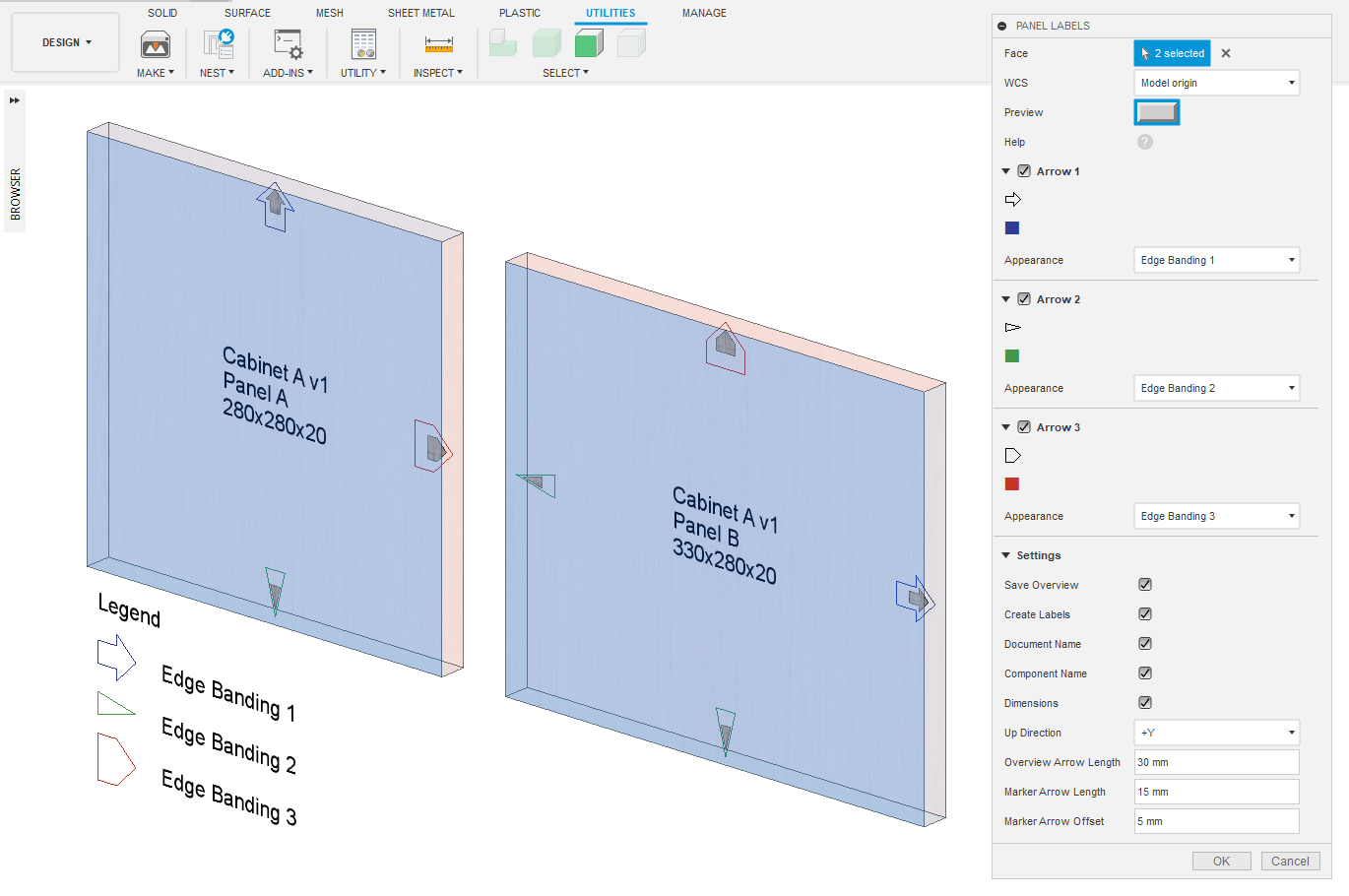
To create panel labels, arrows and overview for edge banding in a cabinet.:

  1. Press the Panel Labels button in the Utilities tab in the Utility panel.
  2. Select the front or back face of a panel.
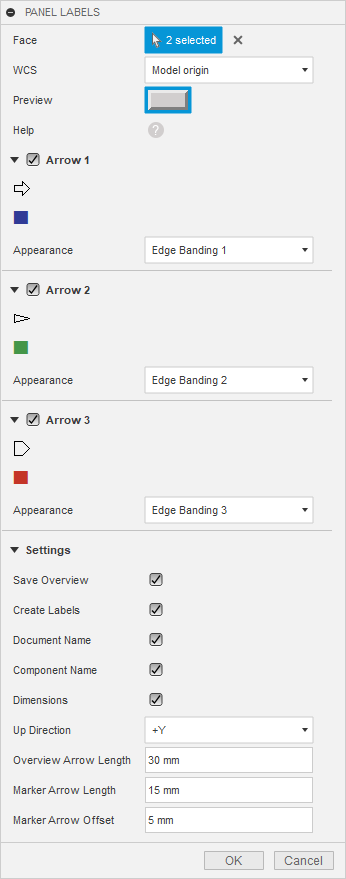
  3. Select the WCS origin for a cycle file.
  4. Specify the edge colors (R: red, G: green, B: blue) or appearances.
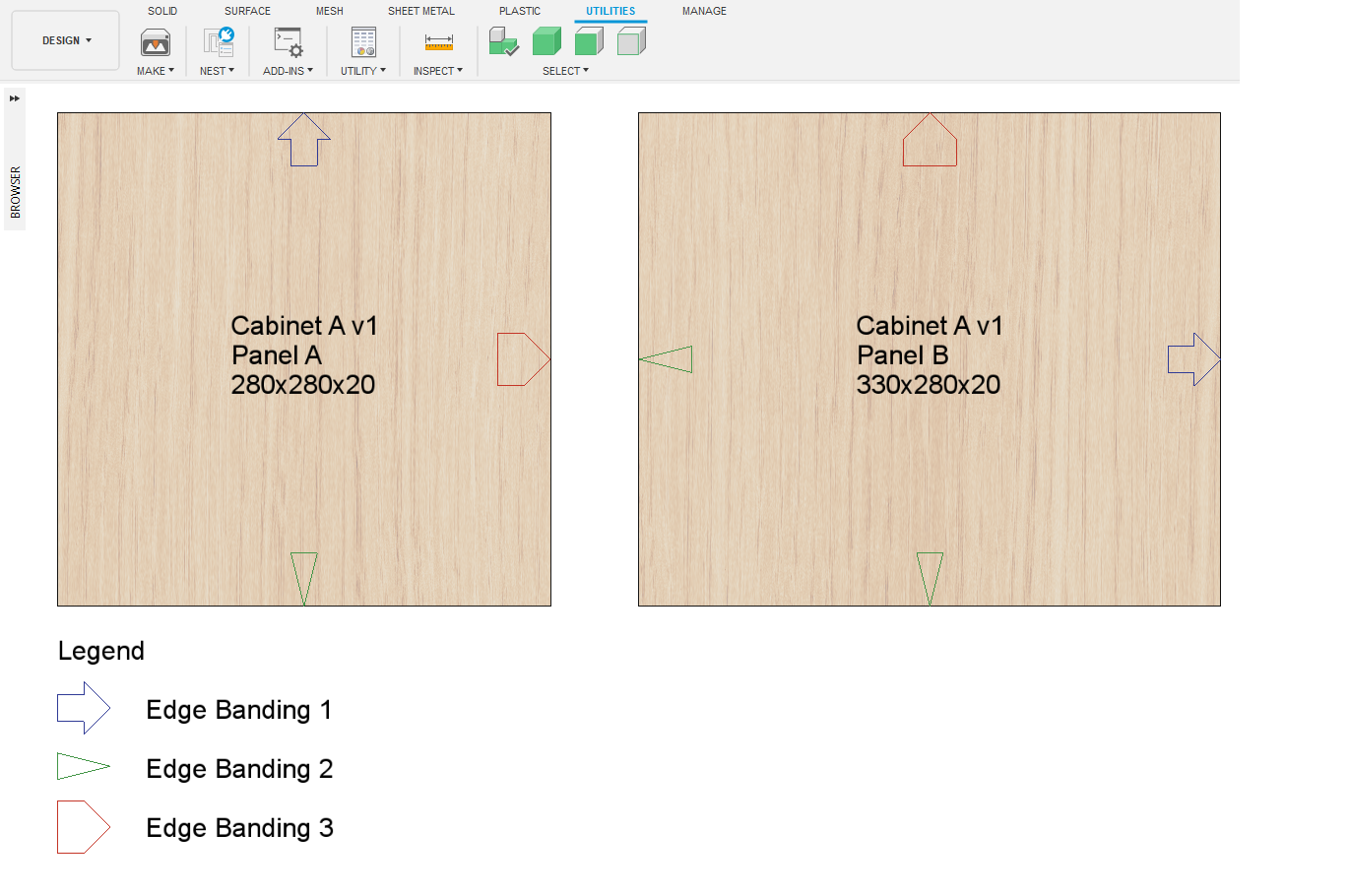
  5. Check the Save Overview checkbox to save the edge banding overview to a PNG file in the selected folder.
  6. Check the Create Labels checkbox to create JPG labels and a cycle file in the selected folder.
  7. Check the Document Name checkbox to include the document name in a label.
  8. Check the Component Name checkbox to include the component name in a label.
  9. Check the Dimensions checkbox to include the dimensions of a panel in a label.
  10. Select the label up direction.
  11. Specify the overview arrow length.
  12. Specify the marker arrow length and offset.
  13. Press the OK button.
1. Press the Panel Labels button in the Utilities tab in the Utility panel.
2. Select the front or back face of panels.
3. Select the WCS origin for a cycle file. Specify the edge colors (R: red, G: green, B: blue) or appearances.
4. Panel labels.